
Running payroll accurately means more than calculating wages. It requires structured employee data, component configuration, and tools to manage one-time payments without manual entry errors. A payroll processing system like Onfinity ERP connects HR records, salary components, and payment execution in a unified platform, reducing the risk of miscalculation and duplicate data entry.
Most payroll teams still toggle between spreadsheets, HR databases, and finance tools to prepare monthly runs. This creates version control issues, data gaps, and last-minute corrections. Onfinity ERP centralizes employee work information, payroll components, and batch uploads so payroll admins can work from a single source of truth.
What Needs to Be in Place Before Running Payroll
Payroll execution depends on foundational configuration. Before processing the first payroll cycle, the system requires payroll definitions, periods, and holiday calendars to be set up. These elements define when payroll runs, which days are excluded, and how pay periods align with organizational schedules.
The employee personal information window stores bank account details, marital status, and nationality. The employee work information window links department, position, grade, and payroll group. Statutory fields like EPF number, ESI number, and income tax contribution status must be populated for compliance.
Payroll components such as salary, deductions, and bonuses are linked to individual employee records. These components can be recurring or non-recurring. Leave accrual plans and unpaid leave tracking are also configured at the employee level.
Version control must be enabled on key fields including organization, payroll name, and amount. Without versioning, the payroll run screen will not generate calculation results. This ensures every salary change is tracked with an effective date and creates an audit trail for compliance reviews.
How Employee Payroll Data Gets Updated in the System
When a new employee joins or an existing employee receives a salary revision, the payroll admin accesses the employee work information window. This is where payroll-specific data is entered or updated, separate from general HR records.
For a new joiner, the admin assigns the payroll name and selects the payroll group. Once saved, a process called “generate element entry” can be triggered. This process automatically assigns predefined employee payroll configuration components and leave plans to the employee, eliminating the need to create each record manually.
Gross salary is entered by selecting the component, setting the start date to match the joining date, and entering the amount. The input value type determines whether the component is calculated proportionally or paid as a fixed amount. For gross salary, the input type is “amount,” and the value is entered in the payroll entry value window.
The effective date for the salary value must be specified. This date controls when the component applies. If the salary changes later, a new version is created automatically, preserving the history of all adjustments.
Access control ensures that only payroll admins can view or edit sensitive compensation data. HR executives can update basic employee details without seeing payroll amounts, maintaining data security across departments.
Using Batch Component Entry to Handle One-Time Payments
When a company issues bonuses or one-time allowances to multiple employees, entering each record individually becomes time-consuming and error-prone. Onfinity ERP includes a batch payroll components feature that allows bulk upload via Excel.
The payroll admin creates a new batch, selects the action type as “create new entry,” and specifies the payroll name and period. The batch is saved, and the “load batch data” button is used to upload a prepared Excel file.
The Excel file includes columns for batch name, component name, employee numbers, input value type, amount, and effective date. The input value type is set to “pay value” for fixed amounts like bonuses. The effective date is optional for bonuses but mandatory for components that depend on specific dates, such as overtime.
Once the file is uploaded, the system populates the batch component and batch employee tabs with the data from the file. The admin clicks “process” and selects “validate” to check for errors. If an employee is marked as terminated or inactive, the system flags the record and prevents transfer.
After validation, the admin selects “transfer” to move the components to the employee work information records. The system confirms successful transfer, and the bonus component appears in each employee’s payroll component details tab.
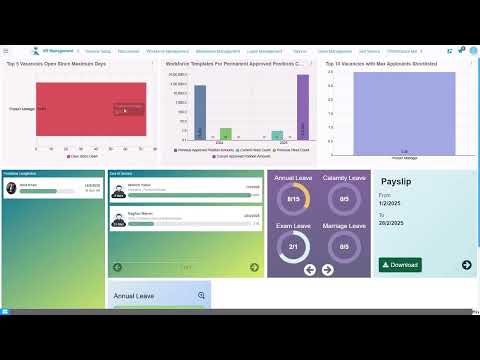
The batch component entry landing page displays charts showing the top payroll batches, top components, and total amounts processed for the month. This provides visibility into what has been uploaded and processed.
If an error is found after transfer, the rollback functionality allows the admin to reverse the batch. Clicking “rollback” removes the components from all employee records, resets the batch status to unprocessed, and allows the admin to amend the data and reprocess without creating a new batch from scratch.
Why Version History and Input Value Types Matter
Version history tracks every change to salary or component amounts with an effective date. When an employee receives a salary revision, the new amount does not overwrite the old one. Instead, a new version is created, and the system maintains a record of all past values.
The “zoom across” option in the payroll entry value window displays the version history. This shows the first version created when the employee joined, and subsequent versions created when salary changes occurred. Each version includes the amount and the date from which it applies.
Input value types determine whether a component is calculated or fixed. “Amount” is used when the calculation depends on factors like days worked or attendance. “Pay value” is used for fixed amounts that do not vary based on other inputs.
Without versioning enabled on the employee work information tab for organization and payroll fields, and on the payroll entry value tab for the amount field, the payroll run screen will fail to generate results. This setup is mandatory for payroll execution.
Version history also provides an audit trail for compliance and salary adjustment reviews. Finance and HR teams can trace when changes were made, by whom, and what the previous values were.
What This Means for Payroll Teams and Finance Leaders
Centralized employee payroll data reduces errors and duplicate entry across HR and finance. Instead of maintaining separate records in spreadsheets and databases, all payroll-related information is stored and updated in one system.
Bulk upload and validation tools cut down month-end payroll preparation time. The ability to upload bonuses or allowances for hundreds of employees in one file, validate the data, and transfer it automatically saves hours of manual work.
Real-time dashboards give visibility into batches, components, and total amounts processed. Payroll admins can see at a glance which batches have been uploaded, how many employees are included, and the total value of components processed for the period.
Role-based access ensures payroll data security while enabling collaboration. HR teams can update employee records without accessing salary details, while payroll admins have full visibility and control over compensation data.
A unified ERP platform like Onfinity connects payroll, HR, and finance in one system. Employee data flows from HR to payroll without manual transfer, and payroll results can be integrated with finance for posting to the general ledger.
Watch how this works in Onfinity ERP:
See the Payroll Workflow in Action
If your payroll team is still toggling between spreadsheets and disconnected systems, see how Onfinity brings employee data, component setup, and payroll execution into one unified platform. Request a demo to walk through the full workflow, or follow us on our LinkedIn page for more insights into streamlining finance and HR operations.