
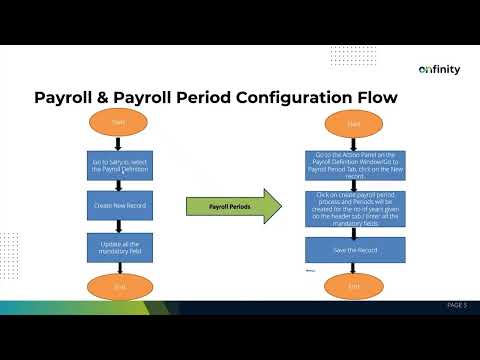
Why Payroll Definition Setup Matters Before Employee Onboarding
When HR teams onboard new employees, the system needs to assign them to an active payroll structure. If that structure doesn’t exist yet, or if its start date comes after the employee’s join date, the payroll name simply won’t appear in the assignment dropdown. This timing mismatch forces manual workarounds, delays first paycheck processing, and creates errors that ripple through salary calculations.
In payroll period configuration workflows, the payroll definition acts as the foundation. It sets the frequency, currency, validity window, and organizational scope. Once saved, it becomes available for employee mapping. Without it, HR administrators can’t complete the hiring workflow cleanly.
Multi-organization environments add another layer of complexity. Each legal entity typically requires its own payroll configuration, tied to that entity’s country, currency, and compliance calendar. Defining payroll names under a global or star organization breaks this separation and prevents proper assignment at the entity level.
The start date field is critical. If it’s set to a date after an employee’s join date, the system logic excludes that payroll name from selection. This is a common setup mistake that forces administrators to go back, adjust dates, regenerate periods, and reassign employees manually.
Configuring Payroll Definitions: Organization, Frequency, and Duration
The payroll definition screen in Onfinity ERP requires several core fields. The payroll name should follow a clear naming convention, such as including the organization code, frequency, and year. This makes it easier to identify the right structure when assigning employees or running reports.
The organization field is either autofilled based on login context or selected from a dropdown. It’s important to create payroll definitions under the correct organization, not under a shared or global entity. This ensures that each legal entity maintains its own payroll structure and compliance settings.
Period type determines how often employees are paid. Options include monthly, fortnightly, or weekly. Once selected, the system automatically calculates the end date and first period end date based on the start date and number of years entered. This removes the need to manually compute validity windows or period boundaries.
The number of years field controls how long the payroll structure remains active. Entering 10 years, for example, means the payroll name can be used in transactions for the next decade. If this value is too low, administrators will need to reconfigure and regenerate periods sooner than expected.
Currency is tied to the organization’s country. Selecting the wrong currency causes calculation errors in gross pay, deductions, and net pay. Once all required fields are filled, saving the record sets a database flag that confirms the payroll name is ready for use.
Automating Payroll Period Generation Instead of Manual Entry
After the payroll definition is saved, the next step is creating payroll periods. These are the recurring time intervals used to calculate and process employee salaries. In traditional systems, this might mean manually entering each period’s start and end dates for every month or week across multiple years.
Onfinity ERP offers a process-based alternative. From the action panel in the payroll definition window, administrators can trigger the create payroll period process. This single action generates all periods automatically based on the frequency, start date, and number of years configured in the header.
For a monthly payroll set to run for 10 years, the system creates 120 periods in seconds. Each period is stored in the database with the correct start and end dates, ready for use in salary runs. This eliminates hours of repetitive data entry and ensures consistency across all organizational payroll cycles.
The generated periods are visible after refreshing the record. Administrators can scroll through the entries to verify that the system calculated boundaries correctly. This automation also reduces the risk of manual errors, such as overlapping periods or gaps in coverage.
What Happens After Payroll Definition Is Saved
Once the payroll definition is saved and periods are generated, the structure becomes operational. The DB item generated checkbox is marked as true, indicating that the payroll name is stored in the database and available for assignment.
HR administrators can now navigate to the employee master record and select the payroll name from a dropdown. The system only displays payroll names where the start date precedes the employee’s join date and the organization matches the employee’s assigned entity.
The end date and first period end date fields control transaction validity. Payroll processing workflows check these dates to determine whether a payroll name is still active. If a payroll definition expires, it stops appearing in salary run selections, preventing accidental use of outdated structures.
The configuration also serves as a reusable template. If another organization within the same ERP instance has similar payroll requirements, administrators can replicate the setup with minor adjustments to organization, currency, and start date.
Common Setup Mistakes That Block Payroll Processing
One frequent error is setting the payroll start date after the earliest employee join date. When this happens, the employee salary management system excludes the payroll name from the assignment dropdown. HR teams then need to adjust the start date, regenerate periods, and reassign employees manually.
Another issue is creating payroll definitions under the wrong organization. In multi-entity environments, this breaks the separation between legal entities and causes payroll names to appear in the wrong context. Employees in one country might see payroll structures meant for another, leading to compliance and currency mismatches.
Setting the number of years too low creates administrative overhead. If a payroll definition is valid for only two years, administrators must reconfigure and regenerate periods every 24 months. This interrupts payroll workflows and requires coordination with HR, finance, and IT teams.
Skipping the period generation step leaves the payroll structure incomplete. Even though the payroll name exists, there are no periods to run salary calculations against. This prevents payroll processing until the periods are manually created or generated through the action panel.
Currency mismatches cause calculation errors. If an ERP payroll setup in India is assigned USD instead of INR, gross pay, statutory deductions, and net pay will reflect incorrect amounts. Correcting this after transactions have been posted requires reversal and reprocessing.
See How Onfinity ERP Automates Payroll Configuration
If your team is still creating payroll periods manually or dealing with date sequencing errors during employee onboarding, it’s worth seeing how automated period generation works. Request a demo to walk through payroll definition setup, period creation, and employee assignment in Onfinity ERP.
Follow us on LinkedIn for more insights on ERP payroll workflows and implementation best practices.