
Most finance teams inherit or build a chart of accounts setup that creates friction later. Ledgers get duplicated across entities, account hierarchies don’t match reporting needs, and month-end close reveals missing controls on sensitive GL accounts. The time to prevent these issues is during initial configuration, not after journals start posting.
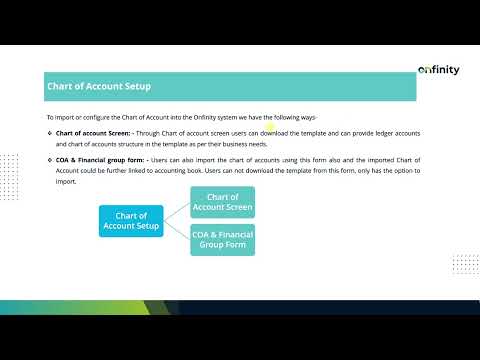
Modern ERP systems offer two distinct methods for building your chart of accounts structure. One uses downloadable templates for offline preparation and bulk import. The other integrates directly with financial reporting groups and accounting books. Both support parent-child relationships and summary level grouping, but they differ in workflow and post-import flexibility.
Why Chart of Accounts Setup Determines Your Financial Reporting Quality
Your chart of accounts forms the foundation for all financial reporting and consolidation. Every journal entry, invoice, and payment references a ledger account. If those accounts lack proper grouping, currency settings, or document controls, reconciliation becomes manual and error-prone.
Poor initial setup creates ongoing issues. Teams spend extra time mapping transactions to the wrong accounts, finance leadership waits longer for accurate reports, and auditors flag inconsistencies that could have been prevented with better ERP ledger account configuration from the start.
Properly structured ledgers enable faster month-end close and audit readiness. When accounts are organized around standard categories—assets, liabilities, equity, revenue, expenses, and memo accounts—and aligned with organizational reporting needs, consolidation happens without manual adjustments. Multi-organization environments gain additional efficiency when master records are created once and made accessible to all subsidiaries.
Two Approaches to Chart of Accounts Configuration
The template-based import method provides a downloadable format that finance teams can modify offline before uploading. This approach works well when multiple stakeholders need to review account structures, propose changes, or validate parent-child relationships before committing to the system.
The financial group form method skips template download and focuses on direct import with immediate linkage to accounting books. This path suits teams that already have their chart of accounts defined in a structured format and want to connect ledgers to reporting groups in a single action.
Template import offers modification flexibility and offline collaboration. Financial group import provides tighter integration with reporting frameworks. Both methods support parent-child account hierarchies and summary level grouping, but only the template approach allows you to download a system-provided format to ensure column structure matches import requirements.
Using the Template Method for Bulk Ledger Import
The system-provided template includes required columns: account value, ledger name, account type, and parent structure. Account value represents the ledger code. Account type categorizes each ledger as asset, liability, revenue, expense, or equity. The parent column defines which summary account a ledger rolls up to, creating the hierarchy your financial statements depend on.
Filling out the template offline lets finance teams validate account codes against existing documentation, confirm reporting hierarchies with controllers, and resolve naming conflicts before upload. Once the file is ready, the import process validates account types, parent-child logic, and code uniqueness before creating ledgers.
Successfully imported accounts appear in a hierarchical tree view with expand and collapse functionality. Summary accounts act as folders that group related ledgers. The tree structure reflects the parent-child relationships defined in the template, giving finance teams immediate visibility into how accounts roll up for reporting.
Manual account creation remains available after import. Teams can add individual ledgers without re-uploading the entire structure, making it practical to adjust the chart of accounts as business needs evolve.
Configuring Ledger Account Properties for Operational Control
Beyond basic account structure, each ledger includes properties that control how transactions post and appear in downstream processes. Bank account designation enables automatic linkage to cash management functions, so cash receipts and disbursements flow to the correct GL accounts without manual intervention.
Foreign currency settings determine how multi-currency transactions are handled. Selecting a currency type and enabling the revaluation flag allows the system to adjust account balances based on exchange rate fluctuations, keeping foreign currency accounts aligned with period-end reporting requirements.
The document control checkbox prevents unauthorized GL journal entries to sensitive accounts. When enabled, users cannot post directly to that ledger, reducing the risk of manual errors or policy violations on accounts like retained earnings or accumulated depreciation.
The allocation-related flag determines visibility in payment allocation and invoice matching screens. Enabling this property for accounts used in financial accounting structure processes ensures they appear in the correct workflows without requiring custom configuration later.
Account groups and subgroups enable custom reporting beyond standard financial accounting structure categories. Teams can create groupings for management reports, segment analysis, or departmental rollups that don’t fit into traditional balance sheet and income statement classifications.
Managing Chart of Accounts in Multi-Organization Structures
Creating master records in the star organization makes the chart of accounts accessible across all subsidiaries. This approach eliminates the need to recreate ledger structures for each legal entity, reducing setup time and ensuring consistency in account codes and naming conventions.
Organization filtering allows users to view consolidated or entity-specific account structures. Finance teams working across multiple entities can apply filters to focus on a single organization or remove filters to see the complete chart of accounts across all subsidiaries.
Tree-based navigation shows the complete account hierarchy with drag-and-drop repositioning. Ledger accounts can be moved between parent groups after initial creation, so teams can adjust the structure as reporting needs change without losing transaction history or requiring data migration.
Unified platform design means the same chart of accounts supports consolidation, intercompany eliminations, and entity-level reporting. Changes made at the star organization level propagate to all subsidiaries, maintaining consistency without manual updates to each entity.
Maintaining Chart of Accounts After Initial Setup
New ledgers can be added individually without re-importing the entire structure. Teams expanding into new revenue streams, adding asset categories, or refining expense tracking can create accounts on demand and position them within the existing hierarchy.
Summary level accounts act as folders for logical grouping of related ledgers. Marking an account as summary creates a parent node in the tree view, allowing teams to organize detailed accounts under higher-level categories that match financial statement presentation.
Copy and move functions enable account structure reorganization without data loss. If a ledger was initially placed under the wrong parent or needs to roll up to a different summary account, users can relocate it while preserving all posted transactions and historical balances.
Grid view and single record view provide flexibility for bulk review or detailed configuration. Grid view displays multiple accounts at once for quick comparison of account types, codes, and properties. Single record view shows all settings for one ledger, making it easier to configure complex properties like currency settings or allocation flags.
Intermediate codes support custom reporting requirements beyond standard GL structure. Teams needing to map accounts to external systems, comply with industry-specific reporting frameworks, or generate internal management reports can assign intermediate codes without altering the primary account structure.
See How Template Import and Account Configuration Work in Practice
If your team is still building chart of accounts structures manually or struggling with multi-entity ledger consistency, see how Onfinity handles template-based import and cross-organizational account management in a single system. Request a demo to see the workflow in action.
For teams migrating from legacy systems or consolidating disparate GL structures across acquired entities, understanding how parent-child hierarchies, account properties, and organizational filtering work together reduces implementation risk and speeds time to first close.